
SETUP GUIDE · APPLE FIND MY
Connect Card Locator in 6 quick steps.
Pair your card with the Apple Find My network in under a minute. No account setup, no extra app — everything happens right on your iPhone.
- Works with Apple Find My
- Under 60 seconds
- No extra app needed
- Works on iOS 14.5+
Secure checkout
Fast shipping
100-day returns
Card Locator
SN · CL-04829
Works with Find My
SETUP GUIDE
6 STEPS
Pairing
Add item
Connected
Tracking
// BEFORE YOU BEGIN
Three things to check first.
An iPhone or iPad
Running iOS 14.5 or later, with Bluetooth turned on. That's all the hardware you need.
Signed into iCloud
Make sure you're signed in with your Apple ID and Find My is enabled in Settings → [Your Name] → Find My.
Your Card Locator
Fully charged out of the box. Look for the small pairing button on the back — you'll press it in step 3.
// STEP BY STEP
Connecting is simple.
Follow these six steps in the Apple Find My app. Each takes just a few seconds.
STEP 01
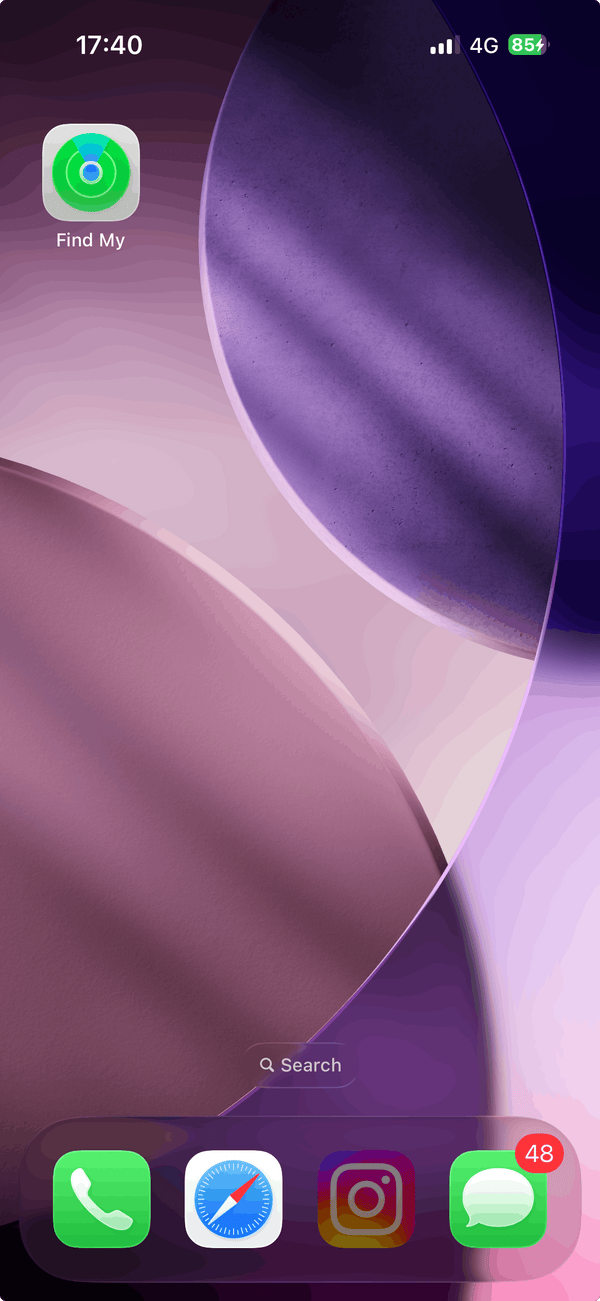
Open "Find My"
Unlock your iPhone and tap the green Find My app icon on your home screen.
STEP 02
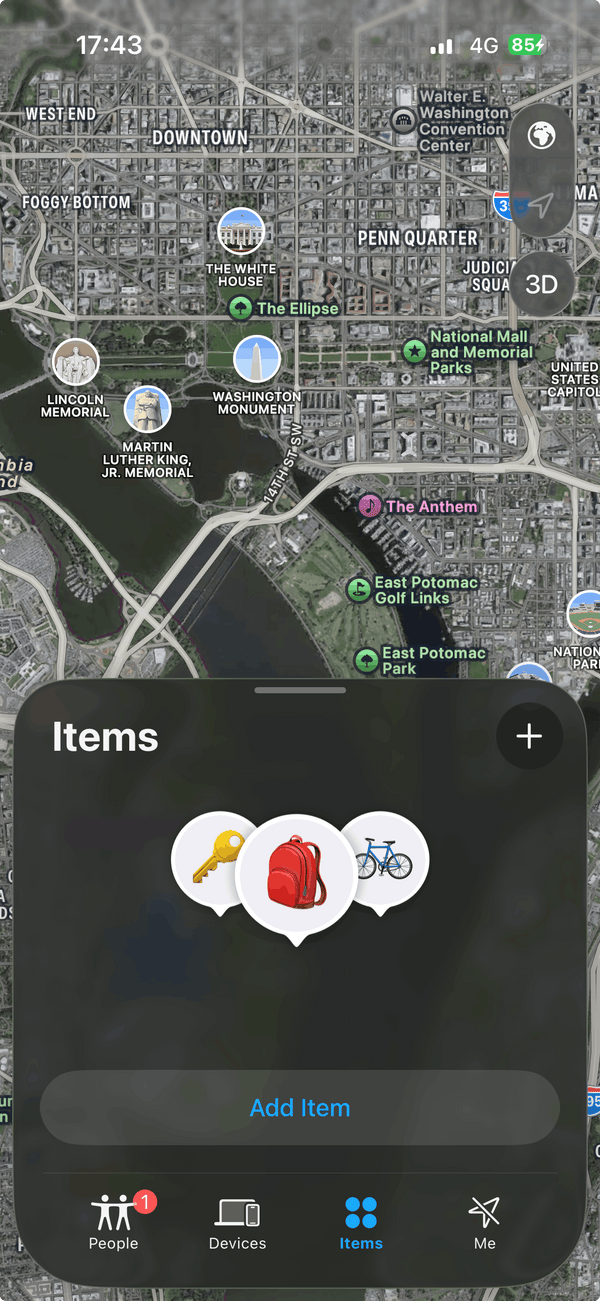
Tap "Add Item"
In Find My, tap the Items tab at the bottom, then the + button to add a new item.
STEP 03
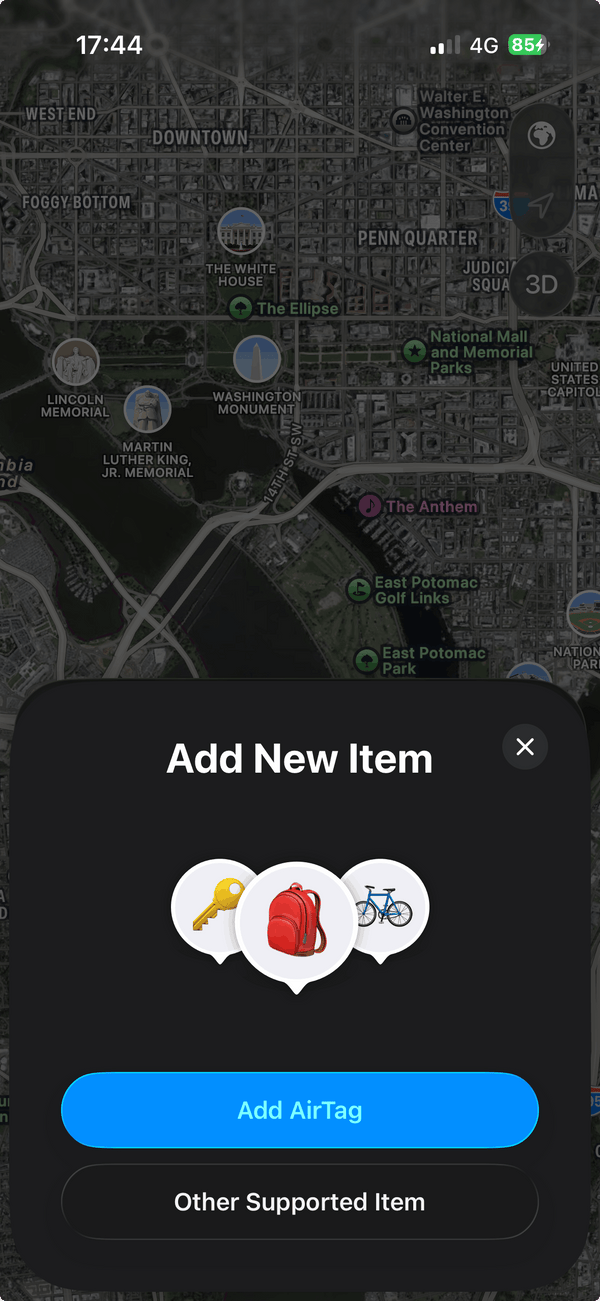
Choose "Other Supported Item"
Skip AirTag and tap Other Supported Item. Then press and hold the button on your card for 3 seconds.
STEP 04
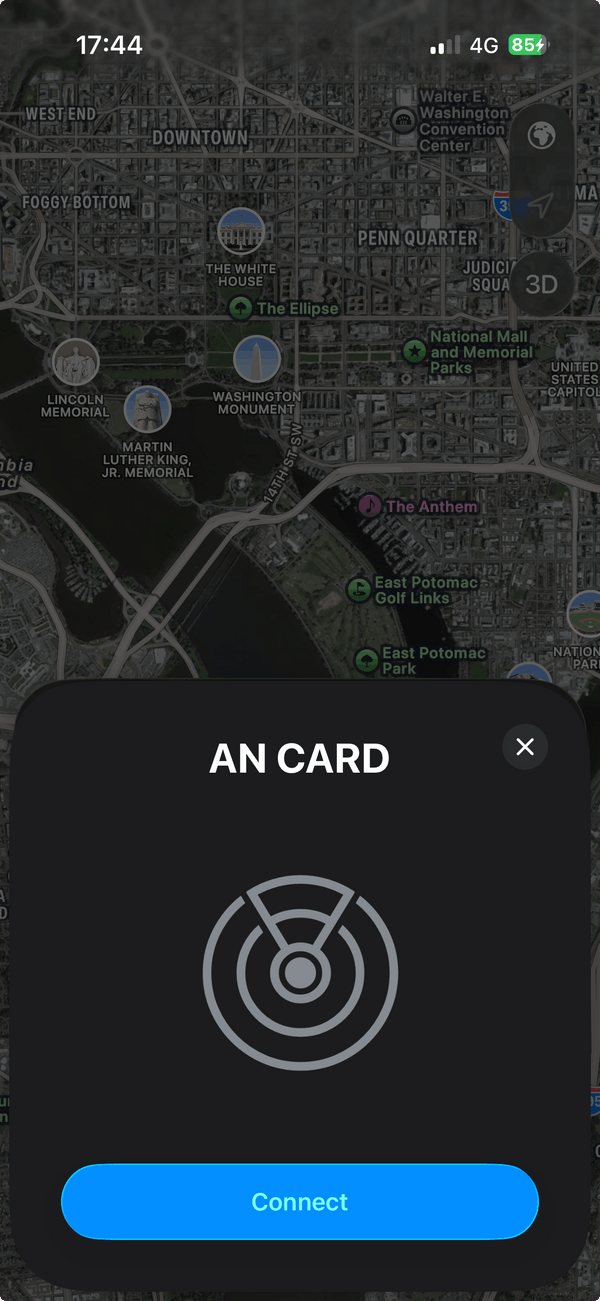
Connect the card
Your iPhone detects it within seconds. Tap Connect and give it a name (Wallet, Luggage, etc.).
STEP 05
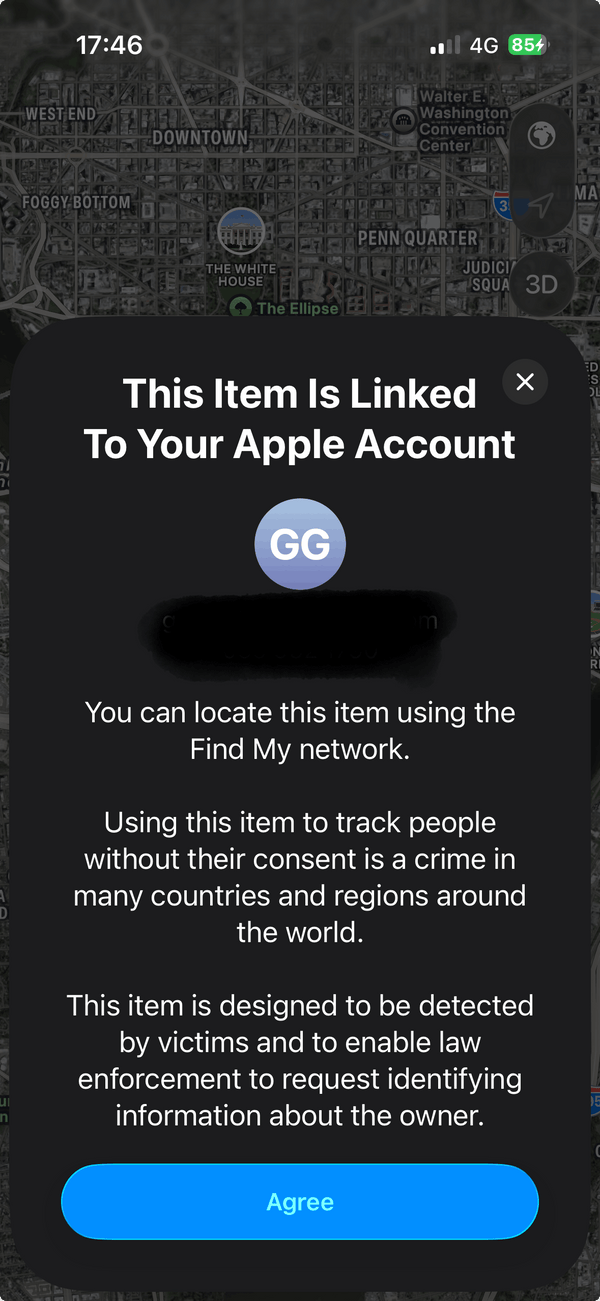
Link to your Apple ID
Confirm you own the item and agree to Apple's Find My terms. This securely ties it to your account.
STEP 06
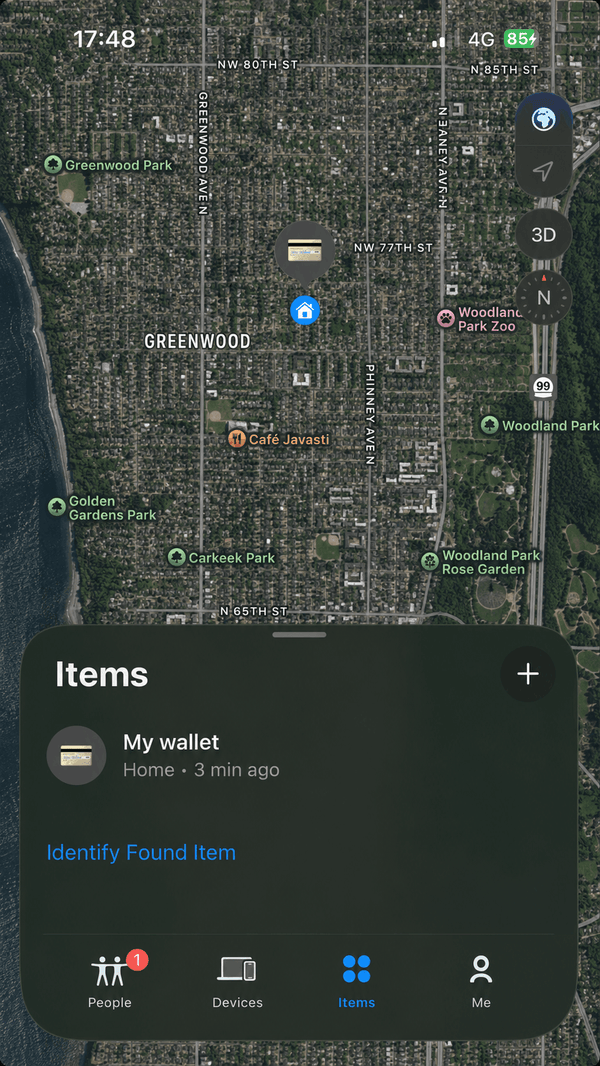
You're all set
It now shows up in Find My. Tap Play Sound to ring it, or Directions to see it on a map.
// AFTER YOU'RE CONNECTED
You're ready to track.
Track it on a map
See your item's last known location any time, right inside the Find My app.
Ring it when nearby
Tap Play Sound to make it chime — perfect when it's hiding in a bag or under cushions.
Get notified if you leave it behind
Turn on Notify When Left Behind to get an alert when you walk away from a marked location.
// TROUBLESHOOT
Setup not working?
My iPhone can't find the card.+
Make sure Bluetooth is on, the card is fully charged (place it on any Qi wireless pad for 30 minutes if you're unsure), and you're within 6 inches of your phone. Then press and hold the pairing button for a full 3 seconds — you should feel a small click.
The "Other Supported Item" option is greyed out.+
This happens when Find My is disabled for your Apple ID. Open Settings → tap your name at the top → Find My → and turn Find My iPhone on. Then return to Find My and try again.
Connecting takes longer than 30 seconds.+
Move to an area with a stronger cellular or Wi-Fi signal and try again — the initial handshake needs an internet connection. If it still hangs, force-close Find My and reopen it.
I already registered the card to another Apple ID.+
A Card Locator can only be linked to one Apple ID at a time. Open Find My on the original device, tap the card, scroll down and tap Remove Item. You can then re-pair it with a new account.
The card isn't playing a sound.+
Play Sound only works when your iPhone is within Bluetooth range (about 30 feet). If the item is farther away, Find My will still show its last known location on the map.
Ready to track what matters?
Get your Card Locator and be set up before your next trip.
Shop Card Locator Now